Mini Auto Mouse Click to Automate Mouse Clicking and Tapping in Sequence
The application presented here allows you to click or touch on Windows 10 / Windows 11 computers. Automated mouse clicks or screen touches/taps can be performed in sequence, and the sequence of mouse clicks or taps can be repeated. As of this writing, the Mini Auto Mouse Click application is available in the Auto Mouse Click software application, which can be used on desktop or laptop computers running the latest Windows operating systems like Windows 11, Windows 10, etc.
Download this Auto Mouse Click application to automate mouse clicking, mouse dragging, tapping, etc., on your Windows 10 or Windows 11 computer. There are many features in this mouse automation software utility. To launch the Mini Auto Mouse Click application, follow the procedure outlined below. Automating mouse clicks and creating your own automated mouse clicker script is easy and intuitive.
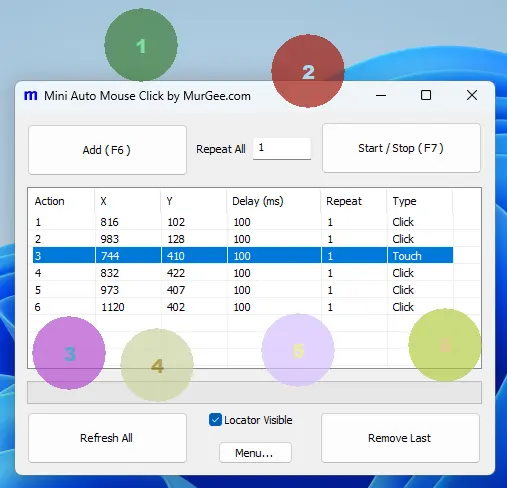
The Mini Auto Mouse Click application allows you to pick screen locations easily with a keyboard shortcut. To mark a click location on the screen display, move the mouse cursor to the desired screen location and press the keyboard shortcut to add a new click. Once you have marked the required screen locations where you wish to auto click or tap, press the keyboard shortcut to start or stop the clicking/tapping sequence.
The marked screen locations identified with semi-transparent circular/rectangular markers can be dragged with the mouse. You can right-click on any of the markers to view a menu containing quick and easy ways to edit its parameters.
The Mini Auto Mouse Click application presents a graphical user interface that is intuitive, allowing you to get started within minutes. Whether you wish to automate mouse clicking at single or multiple screen locations, this easy-to-understand application can save you time and effort when you need to click for an extended period.
Launch Mini Auto Mouse Click
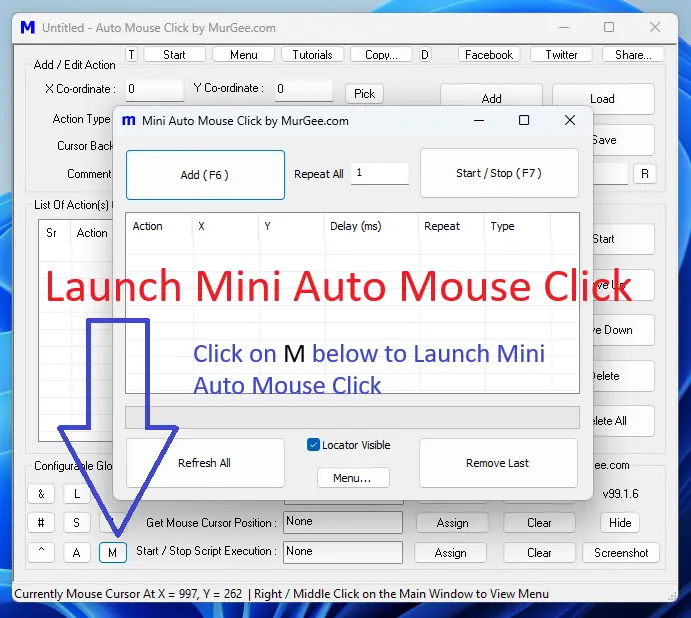
To get started with Mini Auto Mouse Click, download Auto Mouse Click, install it, and launch the Mini Auto Mouse Click application utility as displayed in the screenshot below. Whenever you wish to use advanced mouse clicking features, you can explore other options in the Auto Mouse Click application.
Control Default Values and Other Parameters of Mini Auto Mouse Click from Settings
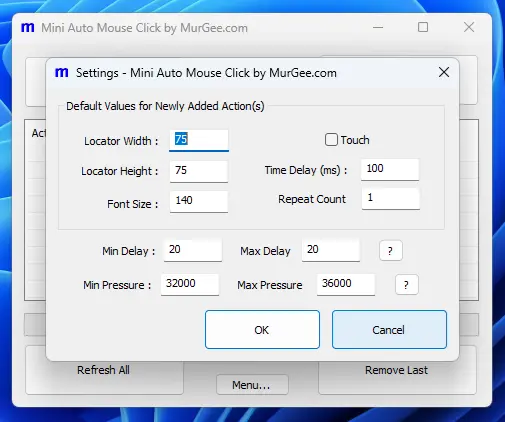
The Mini Auto Mouse Click application is configurable with custom parameters. Software parameters applicable to all click/tap locations can be configured in the software Settings. You can right-click on the main screen of the Mini Auto Mouse Click application and click on the Settings menu item from the popup menu. To launch the Settings screen of the Mini Auto Mouse Click utility, you can alternatively click on the Menu button provided at the bottom of the software and select the Settings menu item.